
Skip to content

YouTube Playlist to MP3 Converter

Turn a YouTube playlist into MP3 files, one per video. Tick only the tracks you want, choose the bitrate once, and download the whole batch.

✓ Free, no sign-up✓ Up to 4K & MP3✓ Playlists & Shorts✓ Works on any device

How to use the YouTube Playlist to MP3 Converter

  1. Copy the playlist link (it contains list=) from the address bar or the Share button.

    A YouTube playlist link pasted into the SaveDock download box
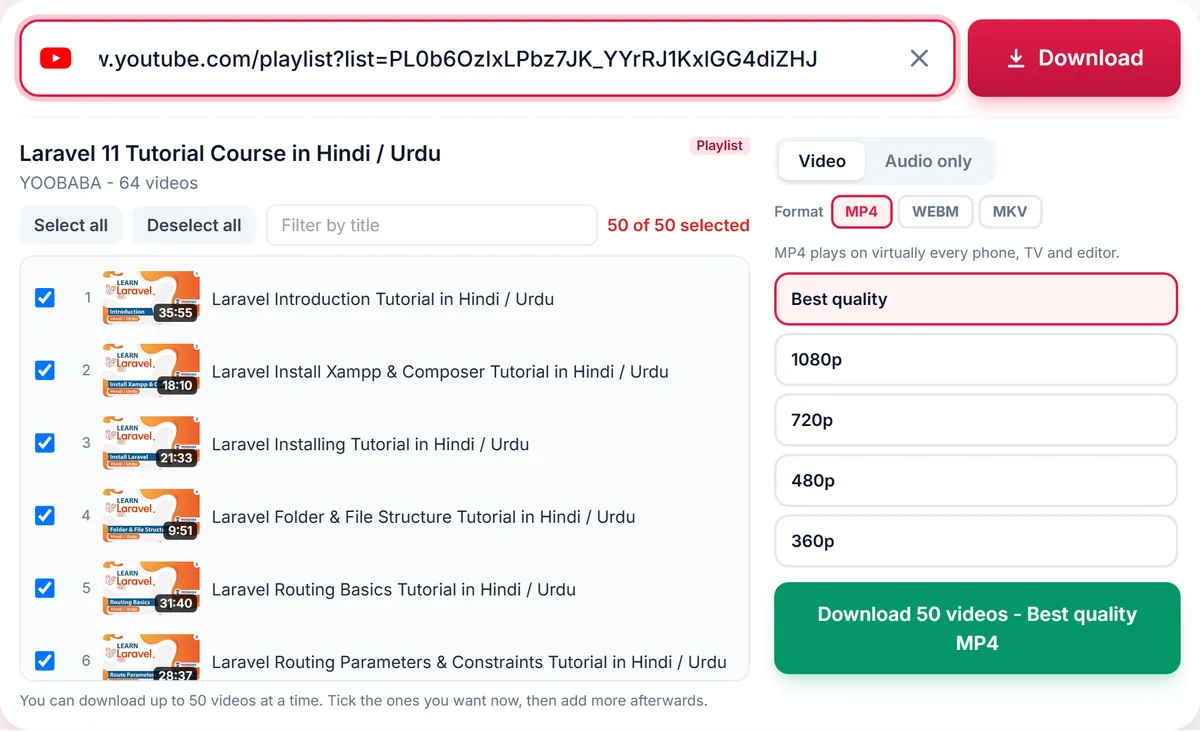
  2. Paste it above. Every video is listed with a checkbox; untick the ones you do not need.

    YouTube playlist picker: a checkbox for every video, Select all, a title filter and one quality for the whole batch
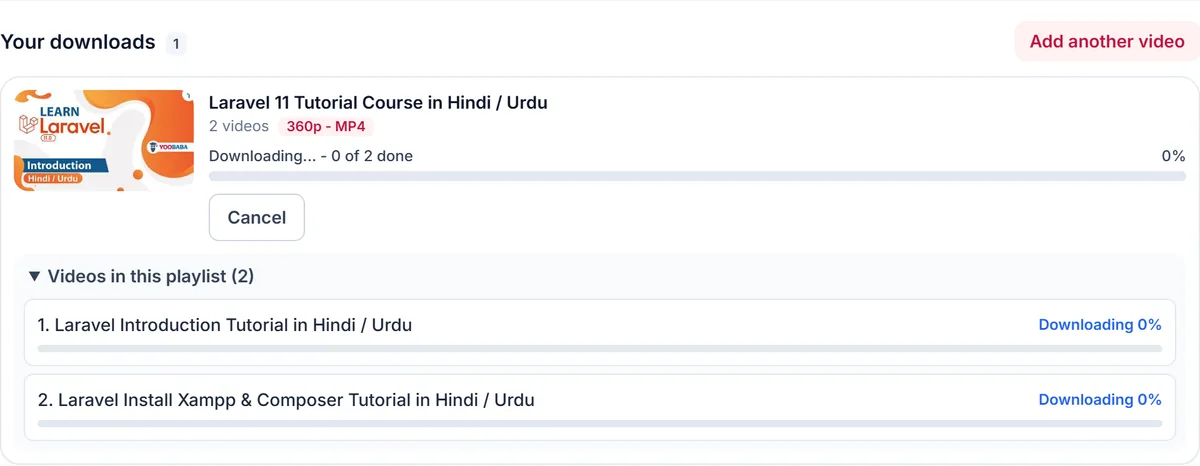
  3. Choose MP3 or M4A and the bitrate, then press Download. Each track becomes its own file.

    A playlist download in progress: each video listed with its own progress bar and a Cancel button

Choose the tracks, not the whole list

Most playlist converters take everything or nothing. Here every video starts ticked, and you can deselect all, tick tracks one by one, hold Shift to select a range, or filter by title. Only the ticked videos are converted, which saves time and storage for long mixes and albums.

One file per song, named after the video

Each video becomes a separate MP3 or M4A file named after its title, so tracks sort properly in a music library and you can delete the ones you do not like. Up to 50 videos are converted per batch; long playlists can be done in several batches, and videos you already added are marked in the list.

Bitrate for music, lectures and podcasts

192 kbps MP3 is the sweet spot for most music, 128 kbps is plenty for speech, and 320 kbps is only offered when the source has enough detail. M4A gives the same quality in a smaller file and is the natural choice for iPhone and iTunes.

What is skipped and why

Private, deleted, members-only and region-blocked videos inside a playlist cannot be converted. They are marked as failed while the rest of the batch carries on, so one unavailable track never stops the others.

Only download content you own, that is licensed for download or that is in the public domain. See our Terms of Service.

Troubleshooting playlist to MP3

Some tracks failed
Private, deleted or region-blocked videos cannot be converted. The rest of the batch still finishes.
I need more than 50 songs
Convert the first 50, then tick the next videos in the list; videos already added are marked.
The link only converts one song
A link with both v= and list= opens the single video. Use the whole-playlist button, or paste the playlist page link.
A file name looks odd
Characters that are not allowed in file names are replaced automatically.

Tips for converting playlists to MP3

  • Untick intros, outros and duplicates before you start.
  • Use the title filter to find songs in long playlists.
  • Choose M4A for iPhone, MP3 for car stereos and older players.
  • Put the files in a folder named after the playlist so they stay together.

Related guides

Playlist to MP3 downloader FAQ

How many songs can I convert at once?

Up to 50 videos per batch. For a longer playlist, start another batch with the next videos.

Do I have to convert the whole playlist?

No. Untick any video before you press Download; only ticked videos are converted.

Will the MP3 files have the song names?

Yes. Every file is named after the video title.

Does it work for YouTube Music playlists?

Public playlists on youtube.com work. Private playlists and personal mixes that need a login do not.

Can I cancel a running batch?

Yes. Press Cancel; finished tracks stay available and the rest stop.

How is your experience?

Rate your experience from 1 (bad) to 5 (excellent)