How to Download a YouTube Playlist
By the SaveDock team · Updated
Playlists are perfect for courses, albums and series, but saving them one video at a time is slow. With the playlist downloader you can grab the whole list, or tick only the videos you want, in a single quality.
Skip the reading?
Use the YouTube Playlist Downloader or the main downloader.
Get the playlist link
Open the playlist page on YouTube, so the address looks like youtube.com/playlist?list=... Copy that link from the address bar. A link to a single video inside a playlist is treated as one video; we then offer a button to switch to the whole playlist.
Choose which videos to download
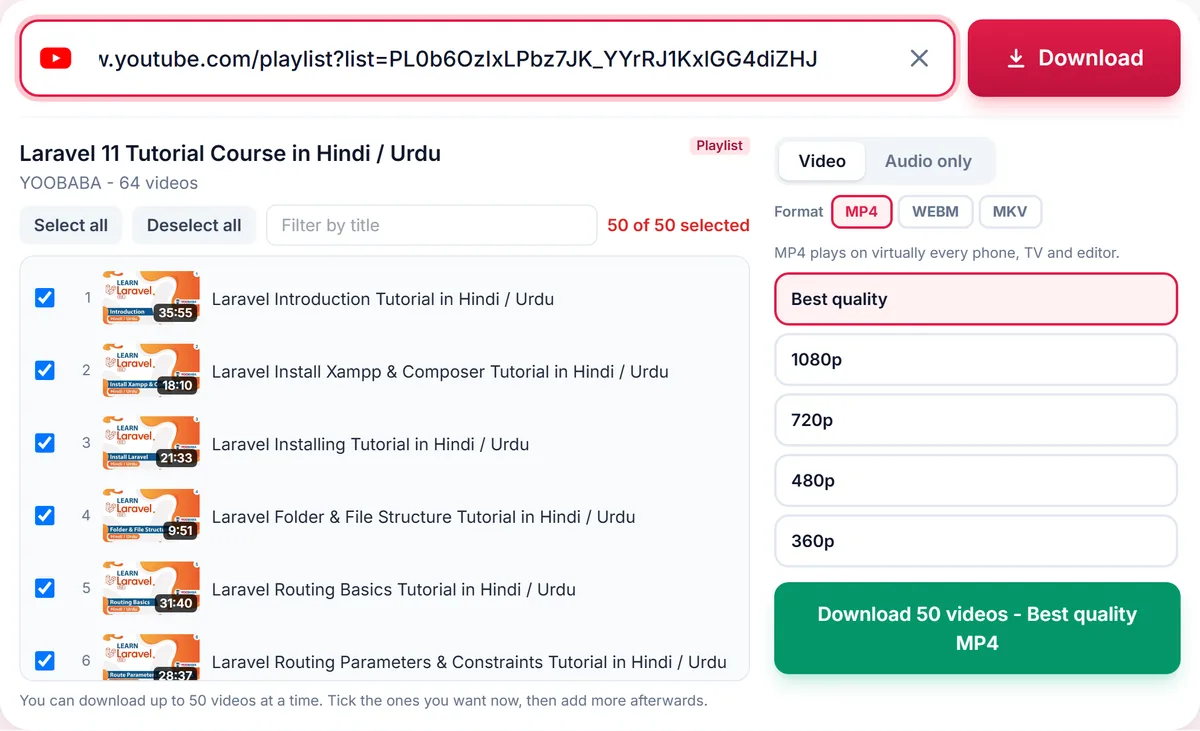
After you paste the link, every video is listed with its thumbnail, length and title, and all of them start ticked. Use Deselect all and tick only what you need, tick or untick videos one by one, or hold Shift and click to select a range. A filter box lets you find videos by title, and the counter always shows how many are selected.
Pick one quality for all
The quality you choose applies to every selected video. For lectures, 720p is usually plenty. For music playlists, open the Audio only tab and choose MP3 or M4A so each track becomes its own audio file.
Limits to know
To keep the service fast for everyone, a single request covers up to 50 videos. For a longer playlist, download the first batch and paste the link again, selecting the next videos. Private or deleted videos are skipped and marked as failed while the others continue.
Save time and storage
Downloading 50 videos in 1080p can take several gigabytes. Pick 720p or audio only if you are short on space, and save files to a computer or external drive before moving them to your phone.
Using playlists for study and listening
Courses and lecture series are ideal for playlist downloads: choose 720p to keep the files compact, or switch to Audio only if you mostly listen. Music albums and podcast series work well as MP3 or M4A, where each track becomes its own file, named after the video title.
Because each item is processed separately, you can save finished files while the rest are still downloading. The list shows the status of every video: waiting, downloading, merging, done or failed.
If some videos fail
A playlist can contain videos that are private, deleted or blocked in a region. Those appear as failed with a short explanation, and the others carry on. You can download the failed ones individually later if they become available.
If most videos fail with a network or rate-limit message, wait a minute or two and start again; the platform may be throttling requests.
Keeping files organised
Files are named after the video titles. After downloading, move them into a folder named after the playlist so they stay together. On a computer you can sort by modified time to see them in the order they finished.
Respecting rights
Playlists often contain content from many creators. Save only what you are allowed to keep, such as your own uploads, licensed content and public-domain material, and respect the terms of the platform.
Frequently asked questions
Is there a limit on playlist size?
Up to 50 videos per request. Paste the link again for more.
Can I choose different qualities per video?
One quality applies to the whole selection. Download videos separately if you need different qualities.
Can I convert a playlist to MP3?
Yes. Open the Audio only tab and choose MP3.
What happens to private videos in the playlist?
They are skipped and shown as failed; the rest continue.
Keep reading
Only download content you own, that is licensed for download, or that is in the public domain. See our Terms of Service.