How to Download YouTube Videos on Android
By the SaveDock team · Updated
Android makes downloading simple: Chrome saves files straight to your phone, and every video player can open an MP4. Follow these steps to save a YouTube video, or only its audio, without installing anything.
Skip the reading?
Use the YouTube Video Downloader or the main downloader.
Before you start
Use Chrome, Samsung Internet or Firefox and make sure the video is public. Free up storage if you plan to save a long or high-resolution video; the file size is shown next to each option.
Step by step
1. In the YouTube app tap Share, then Copy.
2. Open your browser and visit SaveDock.
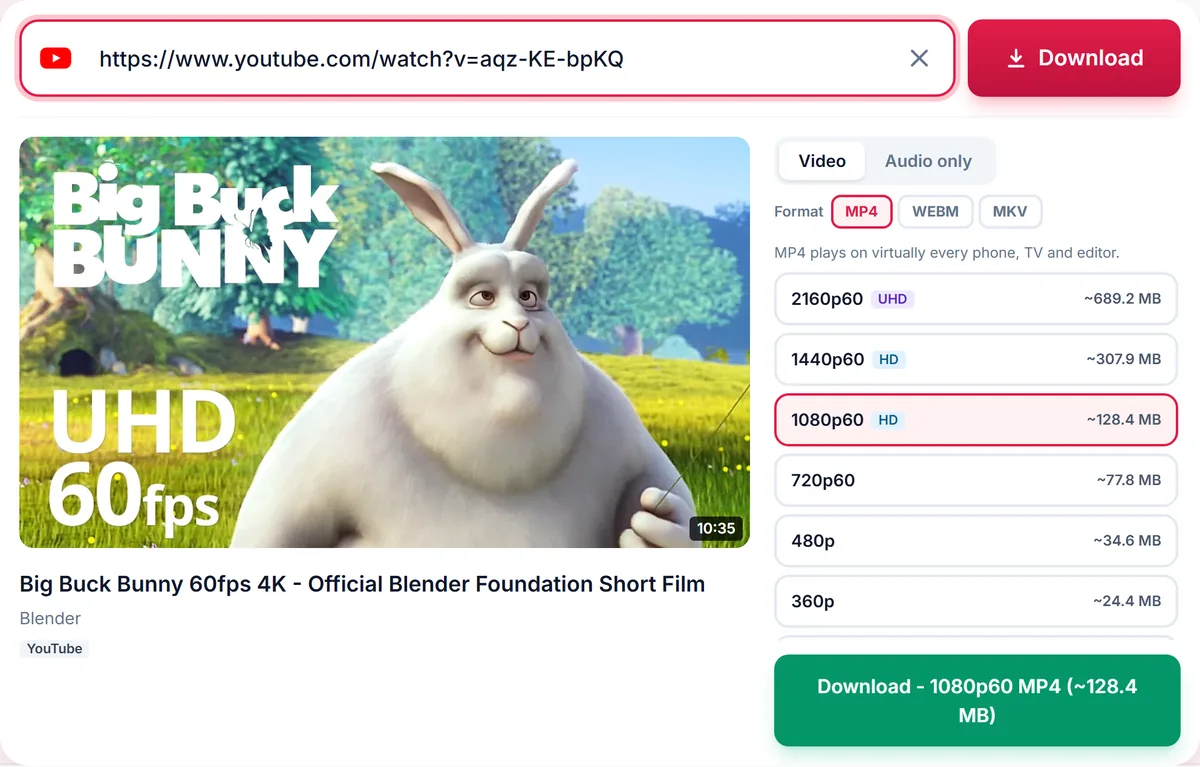
3. Tap the link box, paste, and wait for the list of qualities.
4. Pick MP4 and a resolution. 720p is a good balance of sharpness and size on a phone.
5. Tap Download. When the file is ready your browser saves it and shows a notification.
Find your video
Open the Files or My Files app and go to Downloads, or tap the download notification. Videos also show up in the Gallery or Google Photos once your phone scans them. If you downloaded audio, it appears in your music player or the Audio section of Files.
Save audio only
Open the Audio only tab and choose MP3 for the widest compatibility or M4A for a smaller file at the same quality. This is ideal for podcasts, lectures and music you are allowed to keep offline.
Troubleshooting
If the download does not start, check that your browser is allowed to download files and that you have free storage. If the quality you want is missing, the uploader never published it. If you see a message that the video is unavailable, it may be private, deleted or restricted in the server region.
Choose the right quality for Android
Android phones range from small budget screens to large flagships. On a typical 6-inch screen, 720p already looks crisp and keeps the file small. Pick 1080p if you will cast the video to a TV or watch on a tablet, and 480p if storage is tight.
The size of each option is shown before you download. A good habit is to check it when you are on mobile data: a 10-minute video in 1080p can be several hundred megabytes, while the same video in 480p is a fraction of that.
Playing the video afterwards
Every Android phone plays MP4. If you downloaded WebM or MKV, install a free player such as VLC to open it. To watch on a TV, use Cast from your gallery app or copy the file to a USB drive.
Audio files appear in your music app after the next media scan. If they do not, open the Files app, find the file in Downloads and tap it to play, or restart the music app.
Save mobile data and battery
Download on Wi-Fi when you can, and keep the screen on while a long file is being prepared. If a download stops because the phone went to sleep, simply start it again; the server keeps the file available for a few hours.
For podcasts and lectures, download audio only. It uses far less data and battery than video.
Safety tips
Download only from your browser. Apps that ask to be installed from outside the Play Store to download videos can contain unwanted software. A web downloader needs no installation and no permissions beyond the browser download.
Frequently asked questions
Which browser is best on Android?
Chrome works well. Samsung Internet and Firefox also download files normally.
How do I make the file smaller?
Choose a lower resolution such as 480p or 360p, or download audio only.
Where are downloads stored?
In the Downloads folder, visible in the Files app.
Can I download a playlist on Android?
Yes. Paste a playlist link, tick the videos you want and choose a quality.
Keep reading
Only download content you own, that is licensed for download, or that is in the public domain. See our Terms of Service.